Showing posts with label JDBC. Show all posts

Sunday, July 29, 2012

How Interfaces are used internally in Java

Before reading this post, I recommend you to go through the following posts:
Interfaces in Java
Runtime Polymorphism in Java
Abstract Classes in Java : Runtime polymorphism

The interfaces have played a key role in making the architecture of Java robust and uniform. The interfaces are used in many places in Java. They are extensively used in JDBC architecture, Collections framework, Multi-threading etc., We will see in detail how interfaces have become crucial for Java to become robust and maintain the uniformity.

Interfaces used in JDBC:

Interfaces are so well used in architecture of JDBC by Java. I should say Java has got most of the flexibility mainly from interfaces and abstract classes. In fact, what Java has done is defined all the method-names in the interfaces. It did not give any implementation for any of the methods. So, what the  DBMS has to do is just use these method-names and build implementation according to the DBMS implementation. In case of migration from one DBMS to other DBMS literally, only the database driver URL, username, password for connection have to be changed.

Now consider a situation without interfaces in Java. In such cases, each DBMS will have its own set of method-implementations and method-names for specific functionalities in Java. Eventually, the method-names for database processing such as executing SQL stored procedures will differ from one DBMS to other DBMS. Now if we want to just change the DBMS we need to change the entire database processing code instead of just changing the driver URL, username and password.


Interfaces used in Multi-Threading:

Similarly interfaces are critical in view of the multi-threading. We know that a thread can be created by two methods.
1. Extending Thread class.
2. Implementing Runnable interface.

Now the first method can impair you in one way. If you extend Thread class, there is no way that you can extend another class since multiple inheritance is not allowed in Java. Now the second option is always good since we can create a class that implements any number of interfaces.

Interfaces used in Collections framework:

Another place where Java has made use of the interfaces is the Collections framework. The Collection framework is the most basic interface. It contains methods to add, remove, search and iterate over list. These are most general functionalities provided. The List, Set and Queue interfaces extend the Collections interface. These interfaces have their specific functionalities in addition to those provided by the Collection interface.

Related Posts:
Interfaces in Java
Runtime Polymorphism in Java
Abstract Classes in Java : Runtime polymorphism
Java Database Connectivity with MS Access -- Part 1
Java Database Connectivity with MS Access -- Part 2
Java Database Connectivity with MS Access -- Part 3

Monday, February 14, 2011

Java Swing applications -- Telephone and Address Book -- II

Implementation:


The Telephone Book application is now designed and we need to just put the coding for that. We already know which objects in swing package are used as the components in the panels for the application. For example, we have mentioned in the last post about some components such as Drop-down list (JComboBox), Labels for the appropriate components(JLabel), Buttons (JButton), Text-Boxes (JTextBox), Scroll Panes (JScrollPane), Results displayed in Tables (JTable), Confirmation of the results through Dialogs (JDialog) etc.

The Front end is Java Swing while the application has a database connectivity with MS Access database. As mentioned in the previous post, there is only one table in the database. The coding is done in two packages: 
  1. TeleAddress package for Component design and Action listeners &
  2. dao package for accessing database from the MS Access database through JDBC API
In all the classes, the constructors play a key role with initializing the frame window processing purposes. Mouse action listeners are applied to the buttons in the interface that interacts with the user, most of them being applied when the user clicks the mouse.

The confirmation dialogs are present in a separate class, named Dialogs with separate dialogs for contact creation, updating contacts and contact-deletion. The Dialogs class contains the following:
  1. Two Constructors -- one for Deletion and the other for Updation / Addition of contacts
  2. dialog( ) and deldialog( ) functions for processing one of the two constructors.
The TelephoneBook class in TeleAddress package is the main class in the application and binds all the classes together. The TelephoneBook class contains the following:
  1. All the Interface-Components such as Buttons, Drop-down lists, Text-Boxes,Labels,Tables etc. are defined in this class.
  2. 5 Panel functions for adding the components into each panel.
  3. A Constructor having function calls to the Action-listeners.
  4. A function named initComponents( ) for the lay-out of components.
  5. All Action-listeners for all the buttons such as Create, Delete, Update, Refresh, Cancel etc.
The SearchTable class allows the user to view the results in a table in a different Frame window. The Database class consists of all the database-connections, where we use the JDBC-ODBC Bridge Driver for connecting to MS Access. The static methods in this class are used for every database operation being done in the application. The dao package makes use of PreparedStatement and Statement for database query executions. The Database connectivity with MS Access can be done as shown clearly in these posts as part 1, part 2 and part 3. The dao package has the data access objects listed below:
  1. Database class for Database connection.
  2. AddDAO class for insertion of new contact into the database table.
  3. DeleteDAO class for deletion of contact records from the database table.
  4. OtherDAO class to get all the records from the database table
  5. SearchDAO class to facilitate searching upon inputs given in the Search and Delete panels.
  6. UpdateDAO class for updating contact details.
The documentation for the classes of this application have been automatically generated by NetBeans IDE through Javadocs which can be downloaded here.

Installation and Configuring the application:

Pre-requisites:
  1. The system should have Java (JDK and JRE) installed on your system, which can be downloaded from this page.
  2. The system should have Microsoft Office Access DBMS.
Configuring and Installation:
  1. Invoke Control Panel -- Administrative Tools -- Data Sources (ODBC). Go to UserDSN tab and click on Add button.
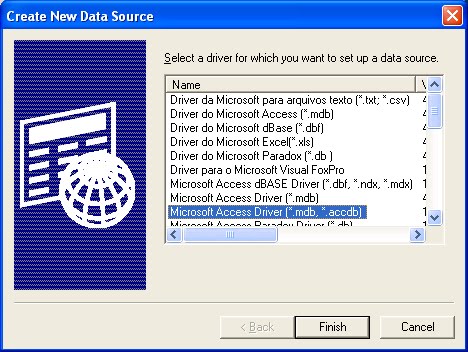
  2. Select Microsoft Access Driver (*.mdb, *.accdb) and click on Finish button.
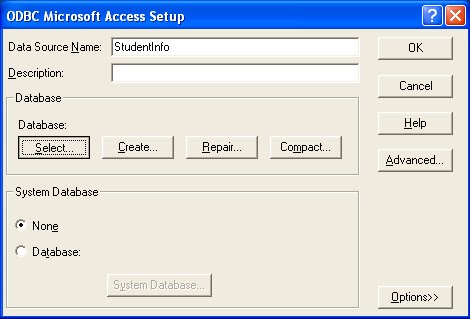
  3. Give the Data Source Name as TeleAddressBook and select the Database Select button and give the path of the database file which can be downloaded from here. After selecting the .accdb file, click OK. Any doubts regarding the configuration of DSN (Data Source Name) can be clarified with the tutorial specified previously at this post with screen-shots.
  4. Download the JAR file which can be downloaded here.
  5. After configuring the DSN and downloading the JAR file, double-click on the JAR file to invoke the application. If its not invoked with the double-click then open Command-Prompt and type the one specified as: java -jar "/* Complete Path of the JAR file */"

    Sunday, September 19, 2010

    Using NetBeans Database Tools

    Many IDEs have the option of accessing the database and running commands in SQL. Besides this, these IDEs allow the operations to be done on the database, thus making everything at a single place (IDE), rather than switching between the DBMS and IDE continuously.

    IBM RAD has this feature of Database Design, accessing databases, tables and schema from itself. Now let us look into the database access with the DBMS from NetBeans. We need to add a database connection before we do anything on the database in the IDE. For the database connection, add a new Driver in the "Drivers" node in the "Services" view (the one that is used for JDBC purposes. Add the JAR file that is used.).


    The NetBeans IDE has 3 views on the left side of the main editor:
    1. Projects,
    2. Files and
    3. Services.

    Go to the Services view, right click on "Databases" node and select "New Connection".


    Now a wizard pops up which asks you to enter the details of the Database connection and the Database. The JDBC URL is also shown in the last text box. Double check whether this database URL is correct or not.


    After entering all the details correctly, click on OK and select the schema in the next wizard and click OK.


    The Database is configured in NetBeans IDE. Make sure that the one you have added now is listed in the Databases node.


    Now we can execute the SQL commands on the Database in NetBeans IDE. Right click on the Database and select "Execute Command".


    As soon as you do this, the editor can be used for SQL statements. Enter the commands and see the results down under the editor. You have many buttons readily available and you can make use of all those things. Some of them are:
    1. Run SQL Button
    2. SQL History Button
    3. Inserting and Deleting rows in a table
    4. Truncating a table
    5. Committing changes
    6. Refreshing the results and so on.....


      An IDE has everything within it and all the IDEs are meant for productivity enhancement. But don't think that IDE does everything for you. It makes your life easy. Using IDE is not a crime especially after one gets some clear idea of a programming language. When you use an IDE to do a project, you are doing the project and not the IDE. Using Notepad is not always the best way to do things especially after a person is aware of the syntaxes in a programming language.
      Use IDEs to the fullest by knowing them to the fullest.

      Friday, July 30, 2010

      Java Database Connectivity with MS Access --- Part 3

      Now lets see how the program goes: I have considered a simple Java program that lists all the students in the "StudentInfo" database. The program is given below:

      import java.sql.*;
      public class AccessData {
          public static void main(String args[])
          {
              try
              {
                  // Load the driver
                  Class.forName("sun.jdbc.odbc.JdbcOdbcDriver");

                  // Database Connectivity
                  Connection con = DriverManager.getConnection("jdbc:odbc:StudentInfo");
                  System.out.println("Connected to MS Access");

                  // Running a query
                  Statement st=con.createStatement();
                  ResultSet rs=st.executeQuery("select StudentID,Name from StudentInfo");
                  while(rs.next()){
                      System.out.print(rs.getInt(1)+"::");
                      System.out.println(rs.getString(2));
                  }           
                  rs.close(); // Close the ResultSet
                  st.close(); // Close the statement
              }
              catch(Exception e)
              {
                  System.out.print(e.getMessage());
              }
          }
      }
      The output would look like this:

      Java Database Connectivity with MS Access --- Part 2

      After the creation of the table (in MS Access) and DSN, we should now write a program in Java which connects to this database.
      • As we use SQL statements in the program we have to import the package java.sql.* by the  statement: import java.sql.*; 
      • In any JDBC program, first the driver has to be loaded which is done  by: Class.forName("sun.jdbc.odbc.JdbcOdbcDriver"); 
      • Now the driver manager gets connection to the database by the following statement:           Connection con=DriverManager.getConnection ("jdbc:odbc:StudentInfo") ;       Here, "StudentInfo" is the Data Source Name and we are connecting through JDBC-ODBC Bridge Driver. So, the database URL is "jdbc:odbc:StudentInfo". There is no username and password given in this function. Only the database URL is given.
      •  Make sure that the entire program has good Exception handling as the code throws "SQLException".

      Java Database Connectivity with MS Access --- Part 1

      It is very easy to make a Java program talk to database on Microsoft Access. Here, we connect the Java program to the database by JDBC-ODBC Bridge Driver.
      We do not need any JAR files to be included as JDBC is a part of Java API and the connection is through JDBC-ODBC Bridge Driver.
      Suppose we have a database in MS Access as given below:


      Save this database in "accdb" or "mdb" format. As we are connecting through JDBC-ODBC Birdge driver, we have to create Data Source Name (DSN) for the respective database. The steps for creating a DSN is as follows:
      1. Open "Control Panel" ----  "Administrative Tools" ---- "Data Sources (ODBC)". You get a window like this:
      2. Now click on the "Add" Button which would then look like:
      3. Select "Microsoft Access Driver (*.mdb, *.accdb)" option and click on "Finish" button which invokes one more wizard where you are supposed to give the "Data source name" and select the database file (.mdb or .accdb). After selecting the database where you stored the table, click OK and the DSN named "StudentInfo" is created.
      Related Posts Plugin for WordPress, Blogger...